


8/10/2026
It has become a challenge to run the legacy Deriver application, which was written in Java Swing, simply because few Users have Java on their computers. Fortunately, Leaning Technologies have devised some technology, CheerpJ, that allow Java Swing applications to run in a web browser.

Many thanks to Leaning Technologies for providing CheerpJ and allowing its use for this purpose.
You can run the Deriver App within any web browser using any of these links. Each will take 30 seconds to load. [The Java .jar, the app, that CheerpJ is running here is Deriver20FatV17.jar. ]
[The running app will appear as a page on its own outside the SoftOption host environment.]
It will appear as a 'window' (or 'browser') within a web page. Sometimes it is more convenient for Deriver to fill that web page (to make it is large as it can be, and to make re-sizing easier). Other times it is more convenient not to do this (when, for example, you are going to have two or more instances of Deriver open and be editing backwards are forwards between them). You can fill or not fill the web page by clicking the square icon (not the arrow icon) on the title bar of Deriver (it is just like going full screen or not full screen on an ordinary desktop application). If you expand Deriver, it will give you more space to work with, but it will not change any font sizes. If you would like the fonts to seems larger or smaller just Zoom in or out off your web browser's View menu. If you would like the fonts to actually be larger or smaller just set the fonts off Deriver's html menu.
Getting started
Deriver will take about 30 seconds to launch. Its basic capabilities are shown in this video:
Your first move
Probably the best initial move you can make is to set your Preferences:
Deriver can run 12 or more different systems of logic. You should set the preferences to provide the system you would like. [Preferences are stored in the Web Browser you are using. They should persist if you leave and come back. But should you change browsers, or computers, completely Deriver won't 'know' what your preferences are, and resetting them would be required.]
If you some experience of formal logic, you might want to look at:
Fast Start on the Deriver web or standalone Application (for Instructors)
Otherwise you could scan some of the books of Notes available here, for example:
- Easy Deriver [Sentential and Predicate Logic—Bergmann Syntax]
- Easy Deriver [Propositional and Predicate Logic—Gentzen Syntax]
- Deriver [Functional Terms, Identity, First Order Theories, Set Theory—Gentzen Syntax]
- Documentation
A quick run through the menus
When Deriver has launched, it will look something like this (depending on the Preferences that have been set).
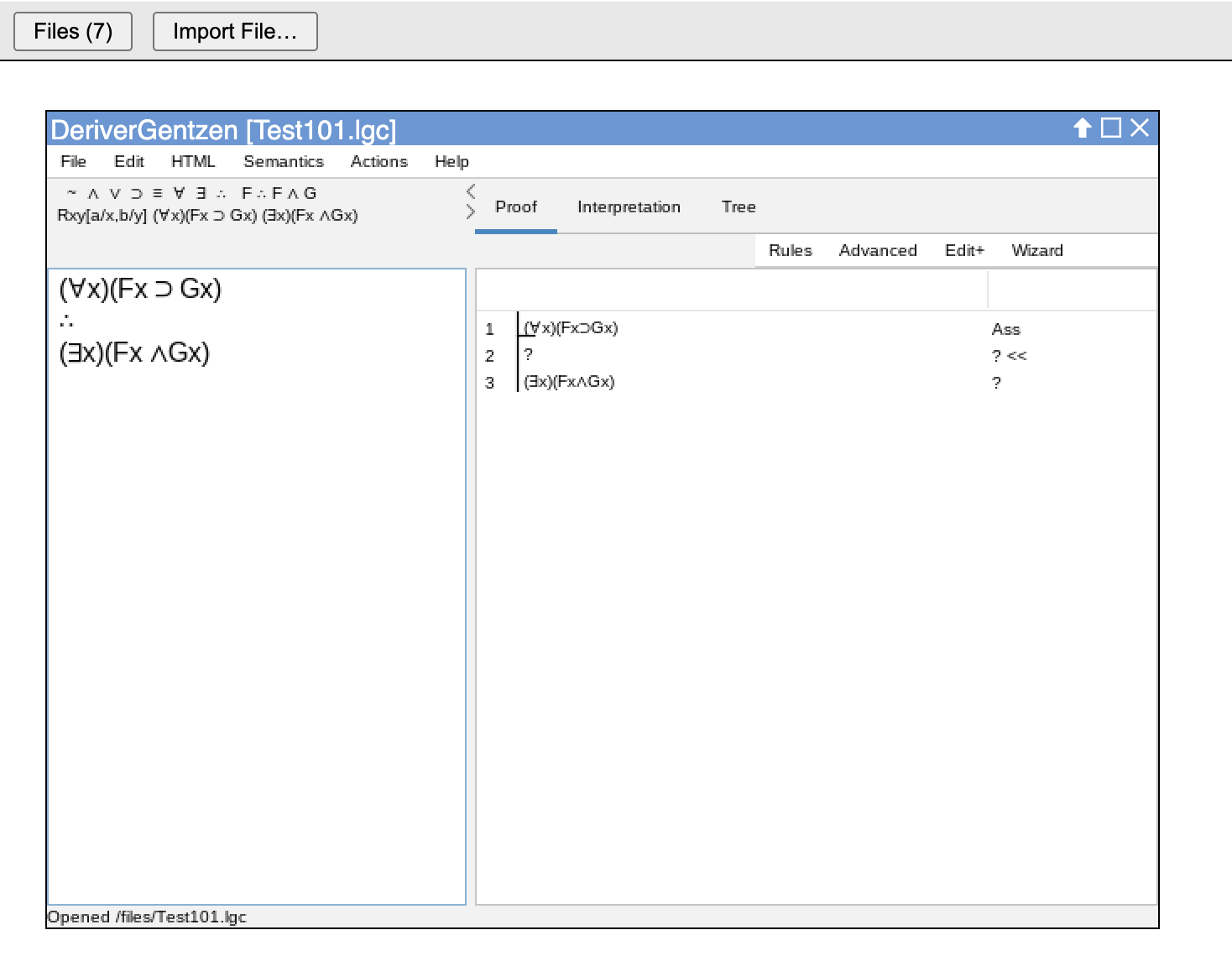
Then, to sketch the menus...
File menu
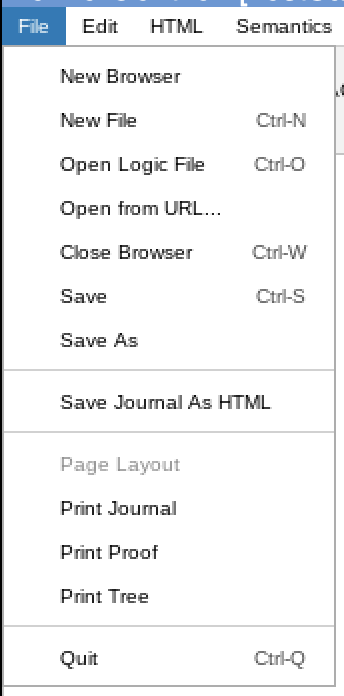
New File produces a new journal, proof, tree and interpretation within the existing browser. If there is an old document there, which has not been Saved, the User is prompted to Save it.
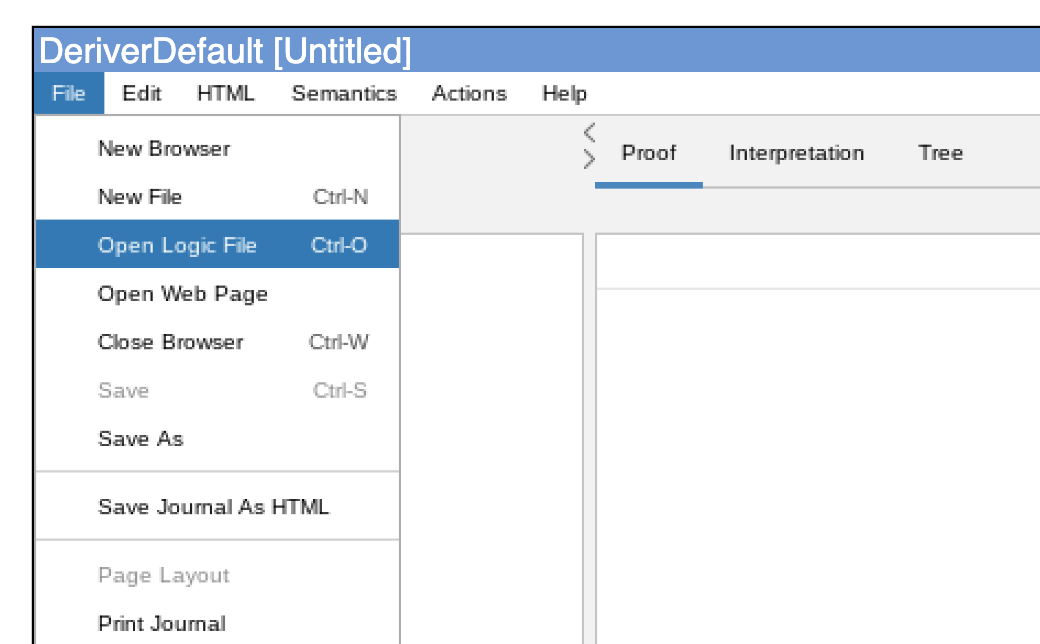
Open Logic file opens an existing logic document, of four panels, within the present browser. If there is an old document already on display there, which has not been Saved, the User is prompted to Save it. Logic files have the suffix .lgc , for example, Exam1.lgc. The Open File Dialog has a setting on it for file type and that setting has the value 'Logic files'. You can easily change that setting to 'All types' and then Deriver will try to open your file (but may or may not succeed).
Open from URL... can open many types of document. It can open logic files (.lgc) or web pages (.html or others). It can open from file locations or from urls. It is very useful (because, for example, an instructor or SoftOption itself can provide an url to an exercise and 'Open from URL...' will open it directly into Deriver). If there is existing content already on display in Deriver, which has not been Saved, the User is prompted to Save it.
Close Browser closes the foremost browser. If there is a document already on display there, which has not been Saved, the User is prompted to Save it. If the browser is the only or last browser on display, the application as a whole will exit.
Save saves if there is new content. It saves all four of the journal, proof, tree, and interpretation. If the document has not been saved before (and thus does not have a file name), it offers a Save As dialog and uses the appropriate file name.
Save As.
Save Journal As HTML does exactly that (but the proof and interpretation are not saved). Saving this way allows the Journal to be opened elsewhere either as a Web page or, for example, in WORD.
The Printing Commands print.
Quit quits the entire program. The User is prompted to Save any unsaved documents.
Saying a little more about the File System
The configuration here is that of an 'app' running inside a web browser. That poses problems. Web browsers are set up to be 'sand-boxed' or 'firewalled' from the computers they are running on. [This is a prudent precaution, as Users may open web pages from anywhere.]
Web browsers typically save files (and other data) to internal databases that they have (still within the sandbox, of course). This is not ideal for our intended use (and other use similar to ours). If a User's logic files are in a single browser's database, the User will struggle to use them from a different browser, or from both their personal desktop and laptop computers. Similarly, instructors will have trouble getting exercises to an entire class of students.
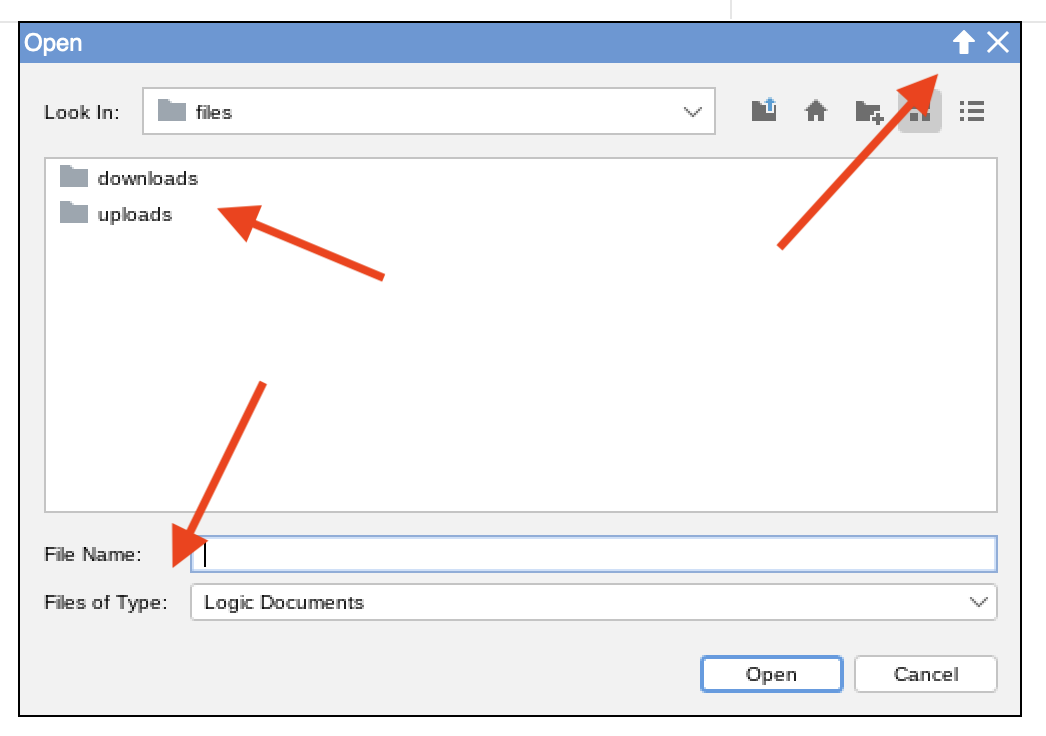
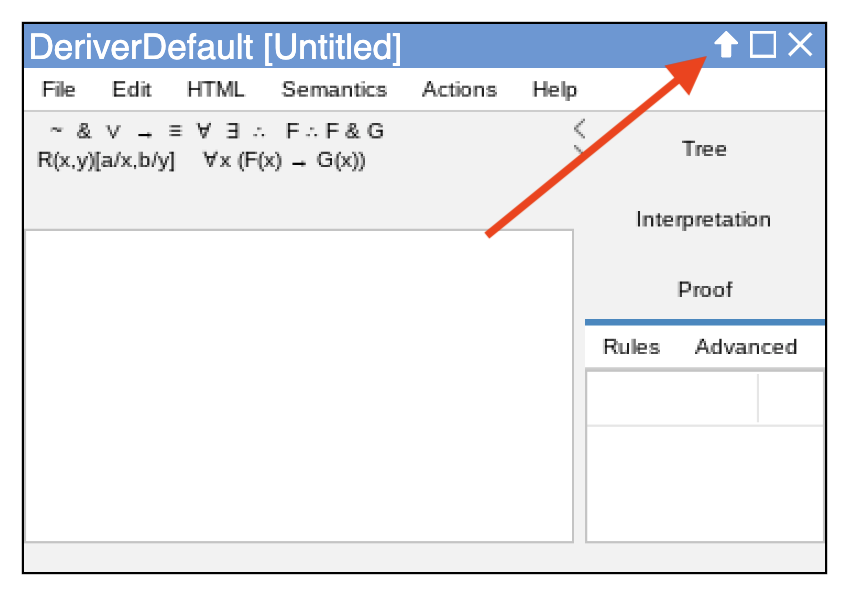
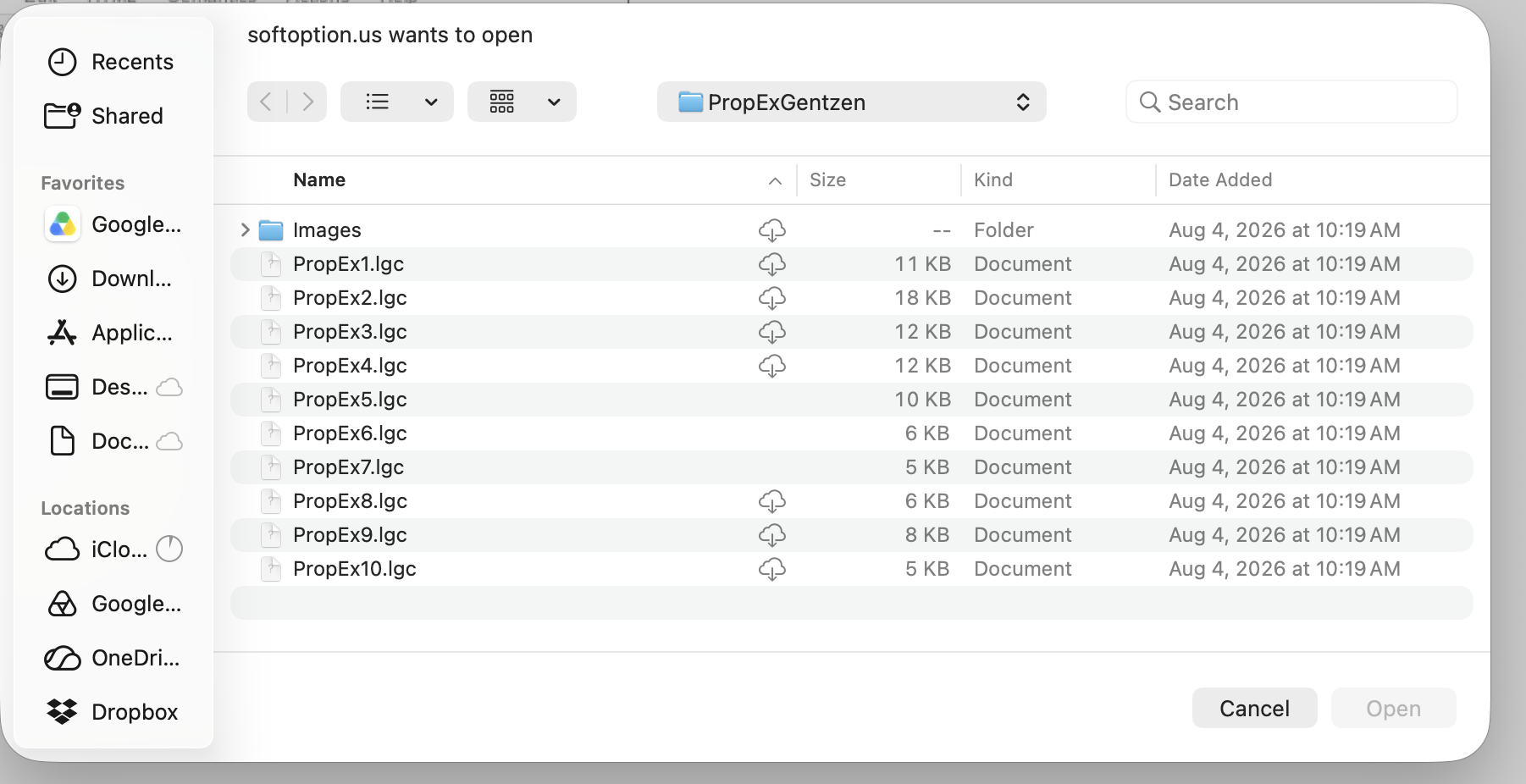
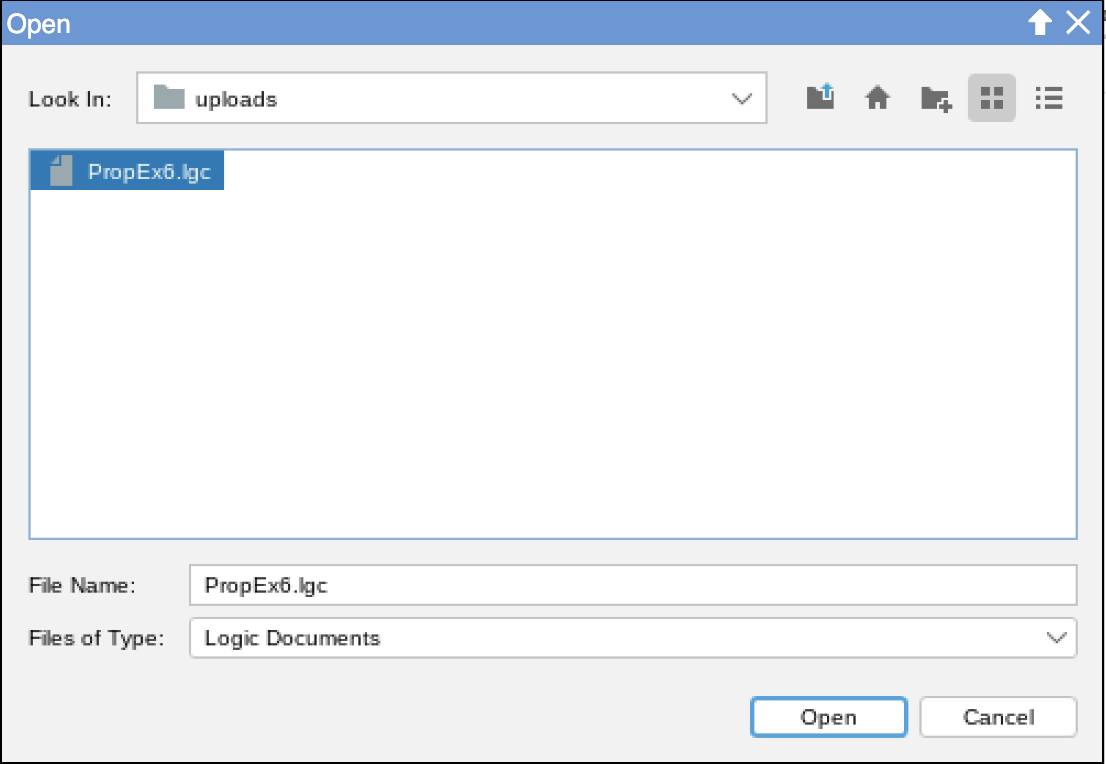
Users may want to save their Deriver-app work to their actual computer (not to a web browser). They may also want to open saved work, or acquired files, from their computer into Deriver. Care is needed with this as it seems to breach the sandbox. A quick solution that is available is that the CheerpJ interface for its file system has two folders or directories in the File Chooser, 'downloads' and 'uploads', and it has a small up-arrow on every window. If a file or document is put in the downloads directory, it downloads automatically via the Web Browser to wherever the User would like to have it. If the up-arrow is clicked, the User can choose a file on their computer which is then uploaded to the uploads directory.
Here is a step-by-step
Click the arrow on the header to any window to upload from your machine:
Select the desired file from your computer:
Seek to open a Logic File within Deriver:
Select the file you uploaded in the uploads folder
Do your work:
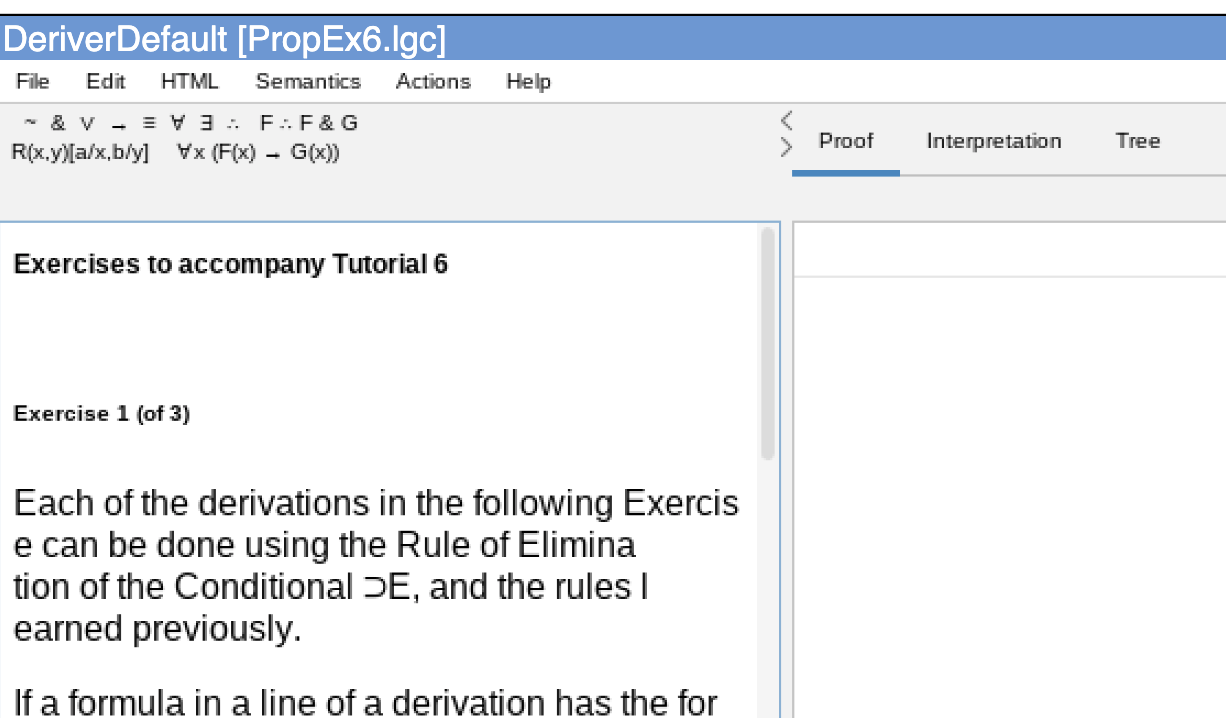
Seek to Save As within Deriver and save the file to the downloads directory:
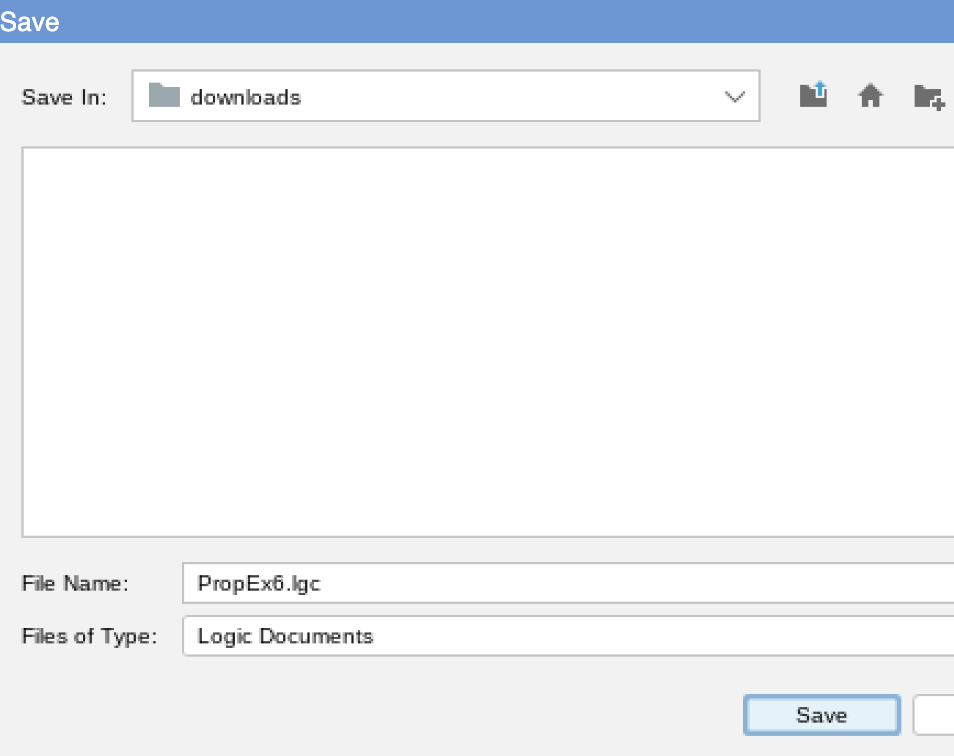
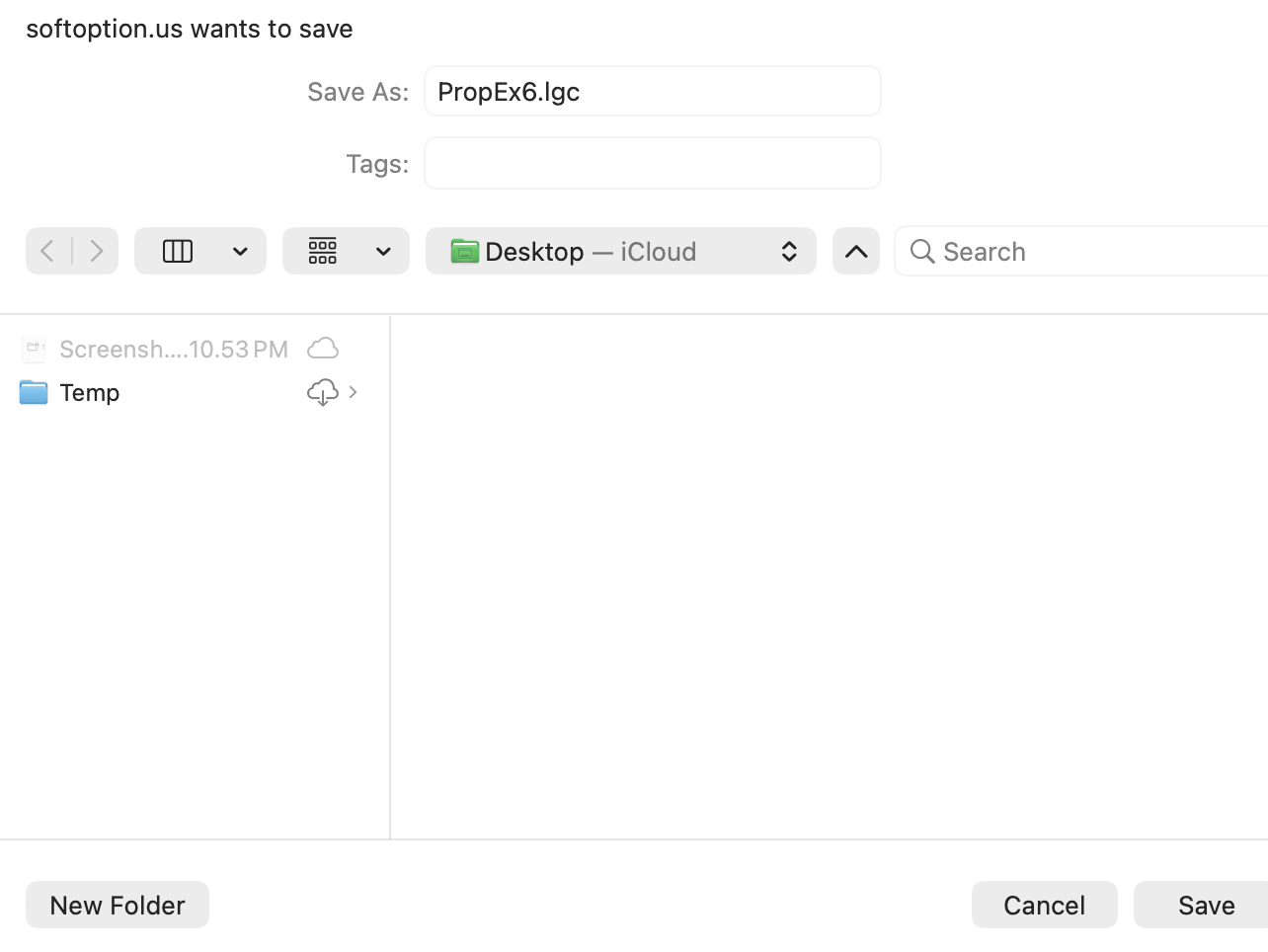
Downloading will be automatic. Select where you would like that file to go on your computer:
Edit menu

Undo, Redo, Cut, Copy, Paste, Select All, Find, Replace.
There is also drag-and-drop editing in the Journal.
Using the System Clipboard.
This is the second sandbox problem. In a manner of speaking, there are two clipboards. There is a system clipboard that the User employs cutting and pasting etc. on their machine, and there is Deriver's clipboard that the User employs cutting and pasting etc. when doing logic. Care is needed with how these interact. It should be possible to copy some text, for example, from entirely outside Deriver, then to paste it into the Journal pane.
Executive Summary of the Present Practice: Deriver has four panels: a web-page journal, a logic proof panel, a logic tree panel, and a logic interpretation panel. The latter three panels have their own Editing and have little or no use for any editing transfers to or from external sources. (Those three panels do have some transfer to the 'outside'— in that, they can be saved, printed, etc.) That leaves the web-page journal (or journals since it is possible for several of them to be open at once). These have Edit Menus with Cut, Copy, Paste, Undo etc. These Menus all work 'internally' that is Cutting, Pasting etc. among themselves using Menu Commands (i.e. mouse clicks on menu items). Suitable material from 'outside', say from WORD, can be pasted in using the keyboard equivalent for Paste (e.g. command-V on a Mac). In sum, use the mouse and edit menus within Deriver and use the keyboard equivalents when bridging from inside to outside or vv.
HTML menu
Edit Text and Live Text 'toggle'. The Journal is a web page, which might have url links to other pages or materials. If the Journal is in Edit Text mode (as it usually is) text can be edited, but the links are not active. If the Journal is in Live Text mode the links will be active and clicking on a link will load whatever the link points to.
The HTML editing submenu Blockquote ... Edit Source There is a point here about the Font Menu Item. If you would like the text in the Journal to be of a different size or Font, use the Font Menu to do this.

Semantics menu

The functions here are 'real' Logic. What they do is explained in detail elsewhere. A summary is
Fast Start on the Deriver web or standalone Application (for Instructors)
Current Interpretation.
Current True Propositions.
True?
Satisfiable?
Endorse?
Deny?
To Symbols?
To English?
Propositional Level
Predicate Level
Actions menu

Start Proof.
Start Tree.
Do Command. See Commands
Help menu

About.
Preferences.
The File Bar
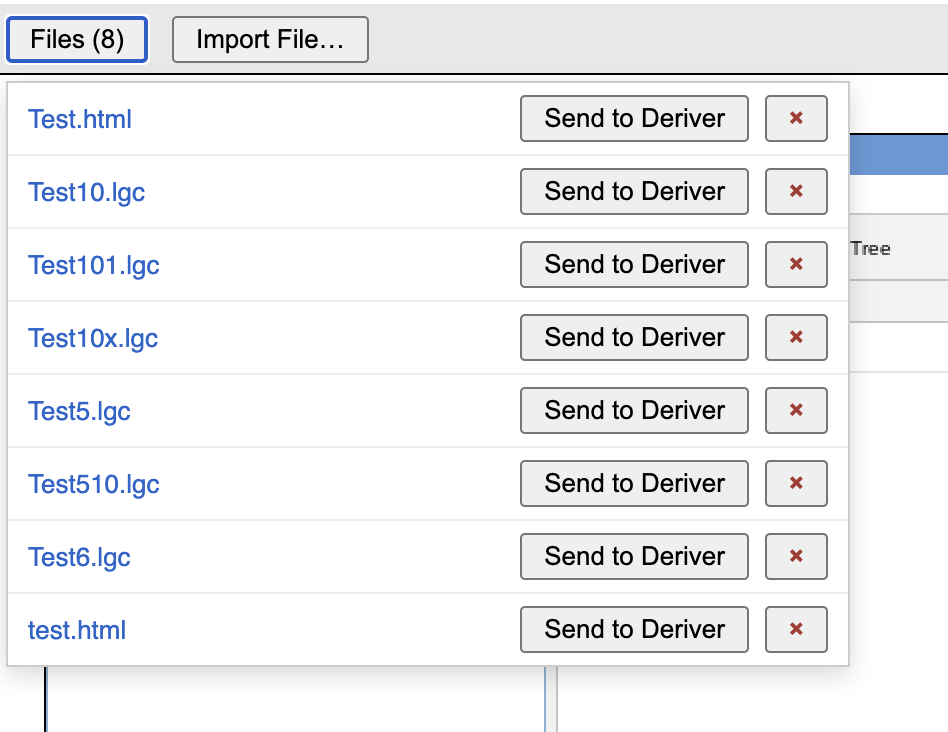
There is an alternative way of opening or saving files. There is a File Bar, located slightly above Deriver:
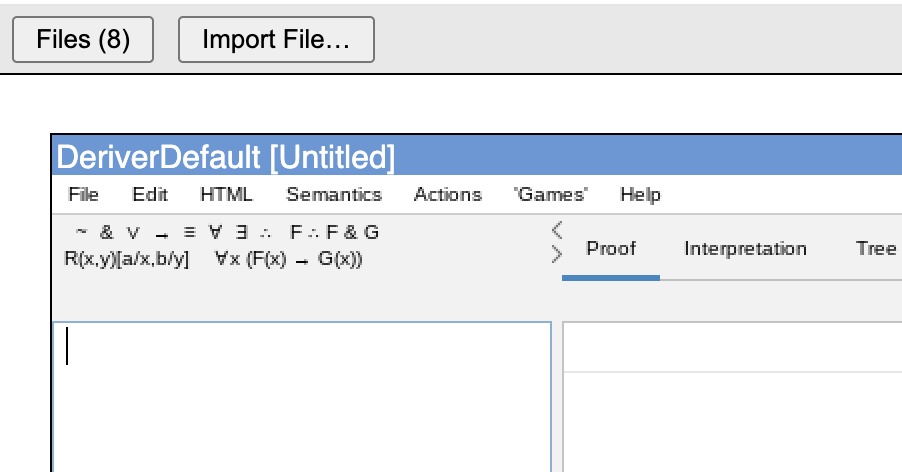
The image below shows the File Bar open (i.e. the Files button has been pressed):
There certainly is a some background that can be given here.
As mentioned, running any application within a web browser has its challenges. Web browsers run within a 'sandbox' or 'firewall' that isolates them from the User's host computer. There are good security reasons for this (e.g. that web content might come from anywhere). But most apps will want to open or save files to and from the Users computer, and that, essentially, is striding into and out of the sandbox.
The ordinary Deriver application, running on the desktop can save to portable and visible files on a resource such as a disk. It also opens such files. The plain vanilla CheerpJ hosted version saves to a virtual file system which, roughly speaking, is a database in a web browser such as Chrome, Brave, Safari, etc. This type of saving is not portable or visible. So, for example, with it an Instructor might have difficulty in conveying saved exercises to students (or students submitting exams to an examiner). This is not a criticism of what CheerpJ hosting does in the wider case. But it does mean that probably some extra glue code is needed to allow the hosted version with a web browser to talk to the world at large.
CheerpJ itself has a two-step solution to this. First it has a virtual file system. This is a file system 'within the browser' i.e. within the sandbox. It is not a file system transparent to the User's computer. Then, second, within its file system it has two bridging devices. It has directories called 'uploads' and 'downloads'. Click on the arrow on every window headers and a file can be uploaded from the User's machine to the uploads virtual folder. Put any file in the virtual downloads folder and it downloads to the User's machine. This has been described above.
CheerpJ's documentation on its File System and Virtual File System is available here https://cheerpj.com/docs/guides/filesystem and https://cheerpj.com/docs/explanation/File-System-support
Our File Bar system supplements CheerpJ approach. Any file can be copied to the File Bar either the from the User's machine or from the running Deriver Application. From there, any file can be sent either to the Users machine or to the virtual file system or the running Deriver Application. The File Bar also essentially keeps a list of back-and-forth recent files. The File Bar might be a convenient approach, especially in the case where a User saves work to the real file system (i.e. downloads) every few minutes.
The User can employ either or both approaches.
Also, and very quick and easy, files can be opened from an URL. Here is an URL to an exercise https://softoption.us/test/Deriver/PredExGentzen/PredEx3.lgc Do try opening it from 'Open from URL...' on the File Menu.
A whole course of exercises: 10 on Propositional Logic, 15 on Predicate Logic.
- Example Propositional Exercises [This is a compressed folder (i.e. a zip) of 10 files. The files are XML (i.e. plain text). The files have a suffix .lgc which is the suffix that Deriver expects with its saved files.]
- Example Predicate Exercises [This is a compressed folder (i.e. a zip) of 15 files. The files are XML (i.e. plain text). The files have a suffix .lgc which is the suffix that Deriver expects with its saved files.]
Above our pay grade
If you get into an entire mess by creating files and folders in the virtual file system and would like to return to 'factory settings':-
Save every file you want to retain to the downloads folder— that will put a copies of them onto your own machine.
In the browser, Open Developer->Developer Tools->Application->Storage->IndexedDB->cjFS_/files/files
That should look something like this
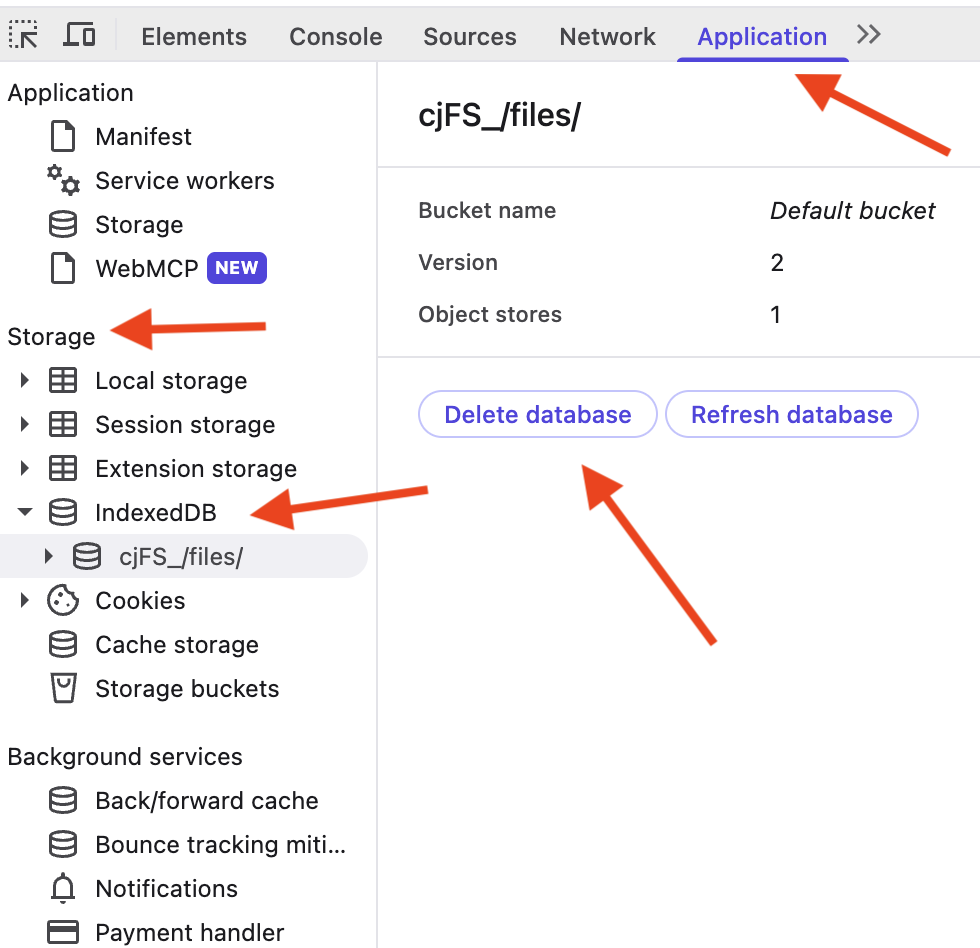
cjFS_/files/ is the database for CheerpJ's virtual file system. That database can be edited. It also can be deleted, which would allow you to start again. But there are a number of things to be cautious about. For example, if you are running other CJ applications besides Deriver you would not want to delete CJ files from those applications. Prudent at this point would to seek advice from an Artificial Intelligence coding agent such as Claude.